Admin User Interface
Mail Templates
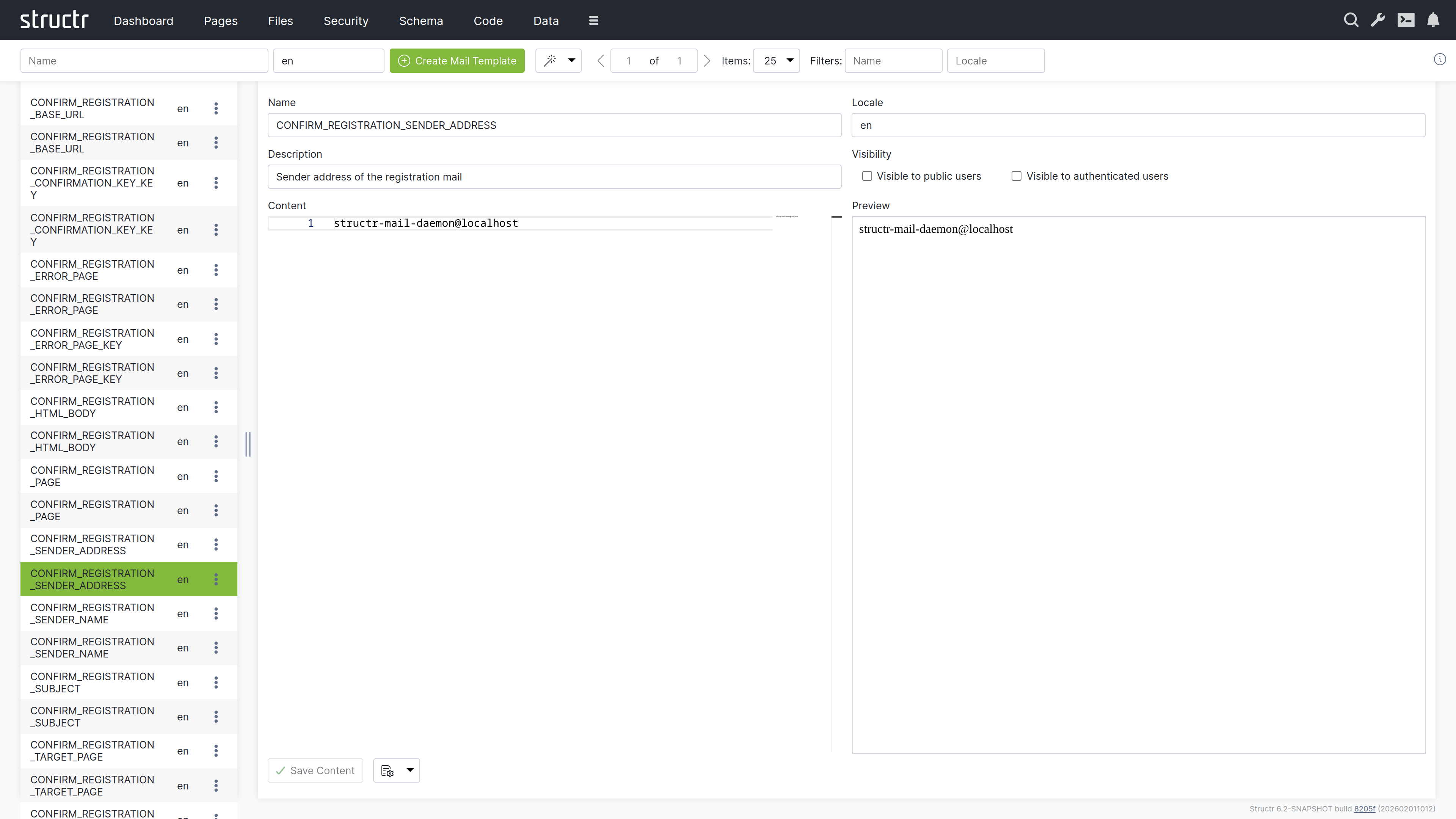
The Mail Templates area is where you create and manage email templates for your application. These templates define the content and structure of automated emails such as registration confirmations, password resets, or notification messages. Templates can include template expressions that are replaced with dynamic content when the email is sent, allowing you to personalize messages with user-specific information. Each template can have multiple locale variants to support multi-language applications. By default, this area is hidden in the burger menu.
Note: This area appears empty until you create your first mail template.
Secondary Menu
Create Mail Template
On the left, two input fields let you enter the Name and Locale(s) for a new mail template. The locale field accepts a comma-separated list such as en,de,fr; Structr then creates one template per locale in a single step. Click the Create button to create them. The same locale list is used by the template wizard described below.
Template Wizard
The wand button labeled “Create Mail Templates for Processes” opens a wizard that automatically generates mail templates for common workflows:
- User Self-Registration – Templates for the registration confirmation email
- Reset Password – Templates for the password reset email
This saves time when setting up standard authentication workflows.
Pager
Navigation controls for browsing through large numbers of mail templates.
Filter
Two input fields on the right let you filter the list by Name and Locale.
Left Sidebar
The sidebar shows a list of all mail templates. Click on a template to open it in the editor on the right.
Each entry has a context menu with:
- Properties – Opens the Advanced dialog for the mail template, which also includes the Security section
- Delete – Removes the template
Main Area
When you select a mail template, the main area shows an editor with the following sections:
Template Settings
The upper section contains:
- Name – The template name (used to reference the template in code)
- Locale – The language/locale code for this template
- Description – An optional description of the template’s purpose
- Visible to Public Users – Visibility checkbox
- Visible to Authenticated Users – Visibility checkbox
Content Editor
On the left side, a text editor lets you write the email content. You can use template expressions with the ${...} syntax to insert dynamic values that are replaced when the email is sent.
Preview
On the right side, a preview panel shows how the template will look.
Related Topics
- SMTP – Configuring email sending
- User Management – User self-registration and password reset workflows that use mail templates